


Introduction: Tired of Slow Wi-Fi or Confused by Router Settings?
You’re not alone. Whether you’re streaming Netflix, gaming online, or just working from home — slow Wi-Fi is a modern-day nightmare. And if you’re trying to tweak your router settings to improve your connection, it can feel like decoding the Matrix.
Good news: You don’t need to spend a fortune or be a tech wizard to fix your Wi-Fi.
In this guide, we’ll help you:
- Find the best budget routers of 2025 that actually perform well.
- Learn how to access your router settings in just a few clicks.
- Troubleshoot slow Wi-Fi with easy, practical tips.
Let’s get started.
🛒 Best Budget Routers in 2025 (Top Picks Under $100)
Here are our top 5 picks for affordable routers in 2025 — all tested, reliable, and available on Amazon.

TP-Link Archer A7: Budget Classic with Great Range
Speed: Up to 1750 Mbps
Wi-Fi Standard: Wi-Fi 5
Best For: Homes & Apartments
This long-time bestseller continues to shine in 2025. The TP-Link Archer A7 delivers excellent range, stable speed, and a user-friendly app. Despite lacking Wi-Fi 6, it’s great for HD streaming, browsing, and even light gaming.
Pros:
- Excellent coverage for medium homes
- Alexa integration
- Intuitive mobile app
Cons:
- No support for Wi-Fi 6
- Basic security features
Ideal for: People who want reliable Wi-Fi for everyday use without tech headaches.
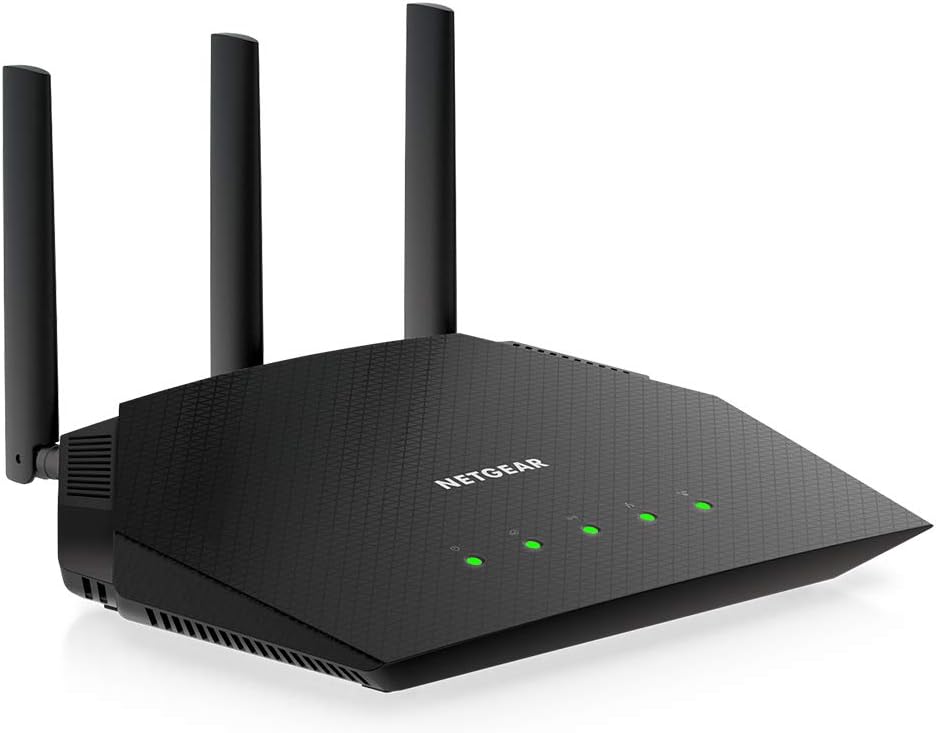
NETGEAR R6700AX: The Wi-Fi 6 Upgrade You Deserve
Speed: Up to 1800 Mbps
Wi-Fi Standard: Wi-Fi 6
Best For: Streaming & Gaming
This router packs Wi-Fi 6 into an affordable design. You get faster speeds, lower latency, and better performance for multiple devices — perfect for modern households.
Pros:
- Great value Wi-Fi 6
- Reliable for video calls and gaming
- Strong parental controls via app
Cons:
- Basic firewall features
- Large design
Ideal for: Users upgrading from older routers who want next-gen performance.
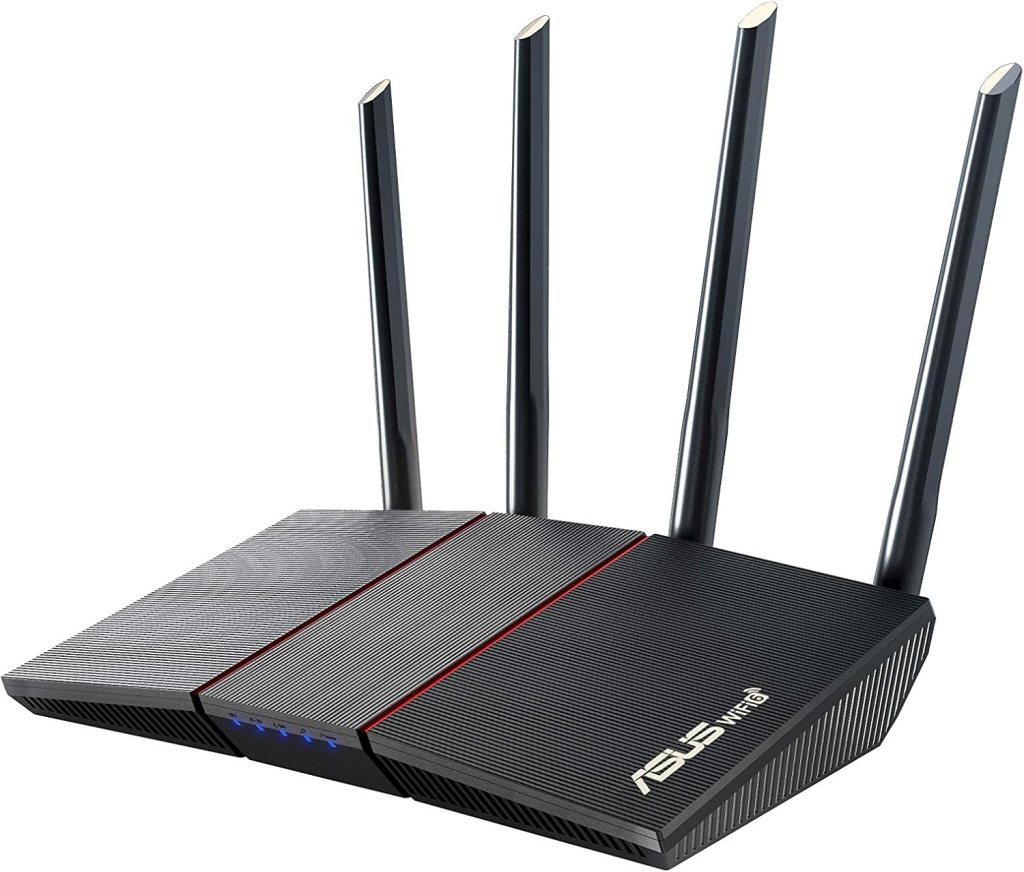
ASUS RT-AX55: Feature-Rich for Smart Homes
Speed: 1800 Mbps
Wi-Fi Standard: Wi-Fi 6
Best For: Smart Homes
The ASUS RT-AX55 offers excellent app support and advanced features like MU-MIMO and beamforming. It’s a perfect companion for smart doorbells, cameras, and assistants like Alexa or Google Home.
Pros:
- Modern design and compact
- Fast speeds and consistent coverage
- Robust app and firmware options
Cons:
- Limited Ethernet ports
- Initial setup can be confusing
Ideal for: Tech-savvy users with smart devices throughout the home.
Linksys E8450: Sleek Performance for Bigger Spaces

Speed: AX3200
Wi-Fi Standard: Wi-Fi 6
Best For: Large Homes
The Linksys E8450 shines in larger homes with its powerful signal and clean, modern design. While the user interface feels outdated, the performance more than makes up for it.
Pros:
- Excellent coverage on multiple floors
- Smooth streaming with multiple devices
- Future-proof with AX3200 support
Cons:
- Web interface is not beginner-friendly
- Lacks mesh expansion
Ideal for: Families who want speed and coverage on a budget.
Amazon eero 6+: Budget-Friendly Mesh System

Speed: 1500 Mbps
Wi-Fi Standard: Wi-Fi 6 Mesh
Best For: Expanding Coverage
Amazon’s eero 6+ offers an intuitive, seamless mesh system perfect for eliminating dead zones. Easy to set up and expand, it’s a favorite for households tired of Wi-Fi drops.
Pros:
- Super easy setup with mobile app
- Compact and attractive design
- Expands easily into full mesh
Cons:
- Requires Amazon account and app
- Less customizable than others
Ideal for: Users with connectivity issues in large or oddly-shaped homes.
🔧 Router Settings 101: Why You Should Care
Changing your router settings can help you:
- Speed up your internet
- Block unwanted devices
- Change your Wi-Fi password
- Improve streaming and gaming quality
- Secure your network from intruders
And it’s easier than you think!
🚪 How to Access Your Router Settings (Step-by-Step)
- Connect to your router’s Wi-Fi
- Open a browser and type:
192.168.1.1or192.168.0.1 - Login using:
- Username:
admin - Password:
adminor check the sticker on the router
- Username:
- You’re in! Now you can change settings like:
- Wi-Fi name and password
- Channel and frequency
- Parental controls and guest network
Tip: Save your changes and restart the router for best results.
🛠 What If You Can’t Log In?
- Try
192.168.0.1or192.168.1.1 - Use the router’s app (TP-Link Tether, NETGEAR Nighthawk, etc.)
- Reset the router (hold the reset button for 10 seconds)
Still stuck? Look up your router’s model number + “login” on Google.
🐌 Fixing Slow Wi-Fi Without Buying a New Router
Try this before upgrading:
- Move the router to a central spot
- Switch channels (2.4 GHz = range, 5 GHz = speed)
- Kick off freeloaders from the network
- Use QoS (Quality of Service) to prioritize gaming/streaming
- Update firmware from the admin page
- Limit interference from microwaves, baby monitors, or thick walls
🔁 When Should You Replace Your Router?
- If it’s older than 5 years
- If it only supports Wi-Fi 4 (802.11n)
- If it drops signal or overheats
- If it can’t keep up with multiple devices
Budget routers today offer way more value than before — Wi-Fi 6 is becoming standard, even under $100.
🧠 Budget Router vs. Mesh System: Which One Is Right for You?
| Need | Go For |
|---|---|
| Small apartment | Budget router |
| 2+ floors, big house | Mesh system (like eero or Deco) |
| Dead zones | Add a Wi-Fi extender |
Want a full comparison? Check out our Mesh Wi-Fi Guide
✅ Quick Takeaways
- You don’t need to spend $200 to get fast, stable Wi-Fi.
- The TP-Link Archer A7 is still a top-value classic.
- Wi-Fi 6 routers are available under $100 and worth it.
- Accessing router settings is easier than ever.
- Fixing slow Wi-Fi often requires just a few tweaks.
📦 Conclusion: Upgrade Smart, Not Expensive
You don’t need an IT degree or a premium budget to improve your home internet. With the right router and a little knowledge, you can enjoy fast, reliable Wi-Fi — and finally stop yelling at your Zoom calls.
👉 Ready to upgrade? Check out the latest deals on Amazon
And don’t forget to bookmark this guide or share it with a friend who’s always complaining about their Wi-Fi. 😉
🙋♂️ FAQs
What is the best affordable router for home use?
The TP-Link Archer A7 and NETGEAR R6700AX are both solid choices under $100.
How do I access my router settings?
Connect to Wi-Fi, go to 192.168.1.1, and login with default credentials or your own.
Can I fix slow Wi-Fi without buying a new router?
Yes! Try moving your router, changing the channel, or updating the firmware.
Is Wi-Fi 6 worth it on a budget?
Absolutely — it’s faster, handles more devices, and future-proofs your network.
Are cheap routers secure?
As long as you update firmware and set a strong password, budget routers are safe.
💬 What Do You Think?
Have a favorite router or a Wi-Fi horror story? Drop it in the comments or share this post with someone who needs better internet. Let’s fix the Wi-Fi world together!
🔗 More Smart DIY Guides You’ll Love
Looking to optimize your digital life even more? Check out these reader favorites:
- 🔌 Best Wi-Fi Extenders for Large Homes in 2025
- 🌐 How Mesh Wi-Fi Works (And Why It’s Better for Large Homes)
- 🏠 DIY Smart Garage: Best Devices to Automate Your Garage Door, Lights & Security
- 👶 Top 5 Baby Monitors for Tech-Savvy Parents (2025)
Disclaimer: This post contains Amazon affiliate links. As an Amazon Associate, we may earn from qualifying purchases — at no extra cost to you.
